



 EchoAPI for VS Code

 EchoAPI for IntelliJ IDEA

 EchoAPl-Interceptor

 EchoAPl CLI
 EchoAPI Client
 API Design
 API Debug
 API Documentation
 Mock Server


Postman vs EchoAPI: A Beginner’s Slightly Traumatizing Ride Through API Flows
A raw comparison from a beginner’s eyes: Postman expects you to already know where things are, while EchoAPI guides you through the testing workflow.

I’m not a backend engineer.
I barely write JavaScript.
My ambition was extremely simple: chain APIs together and run one full automated test without crying.
Part 1: Doing the Whole Flow in Postman
1. Creating an Environment (Confidence: 100%)
Everything starts with what looks like an easy step.
1. Environments → Create environment

2. Name it dummyjson
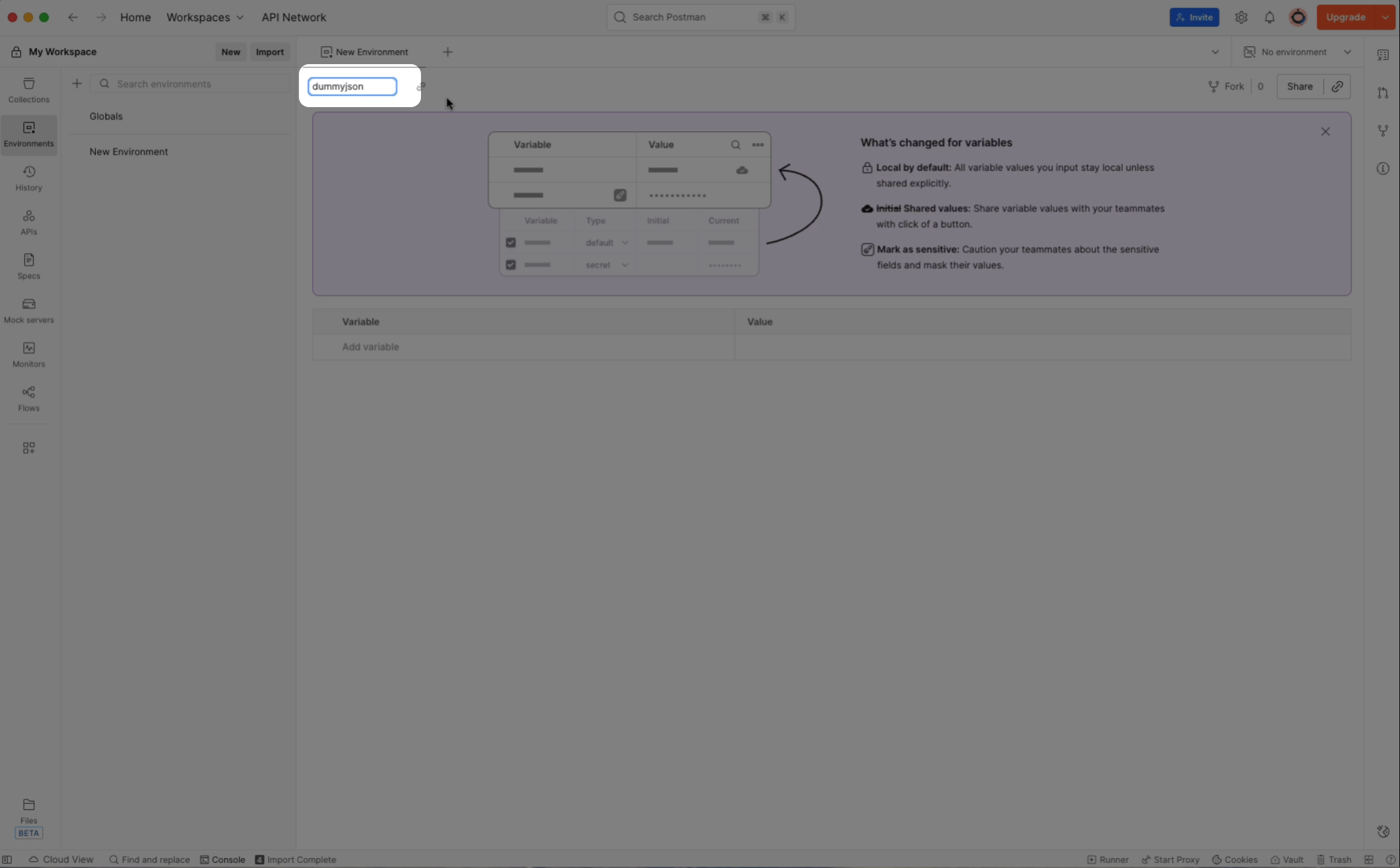
No issues here.
My mental state at this point:
“Okay, environments. I know what that is. I’m basically a pro.”
2. Opening the First API (Confidence: 100%)
1. Open the first API in the Collection:
GET: /products?page=1&size=10&search=Laptop
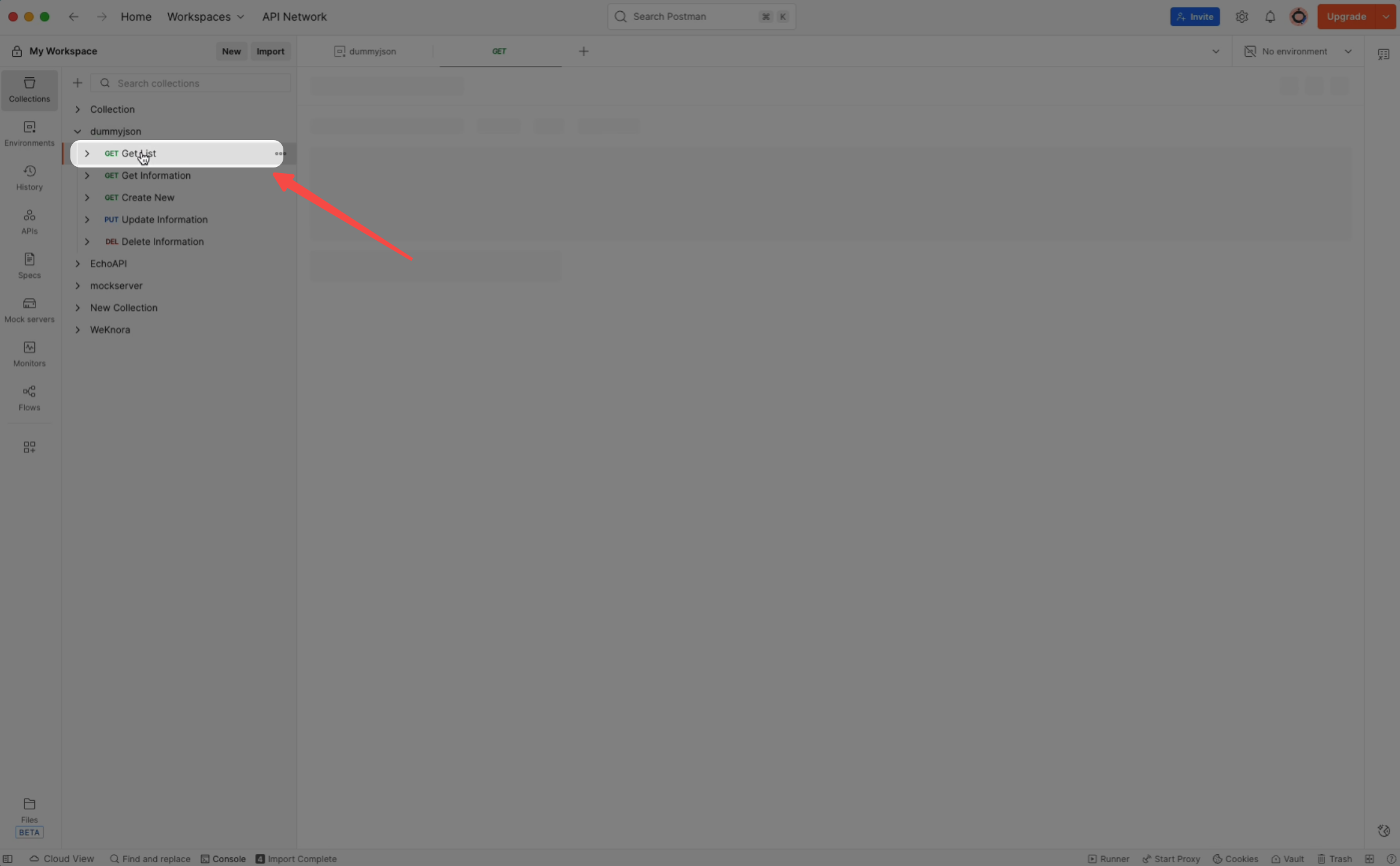
2. Select the dummyjson environment in the top-right corner
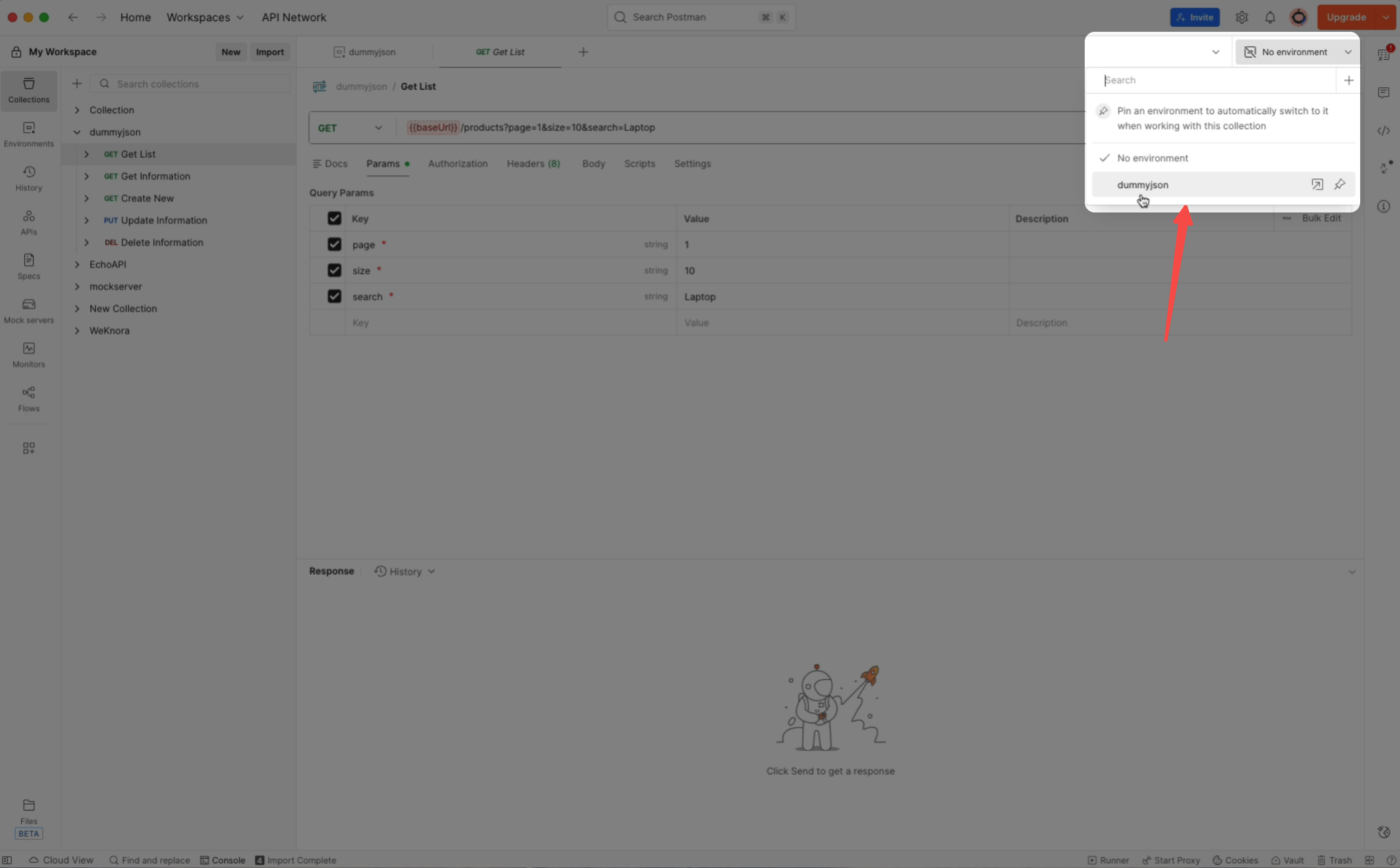
So far, so good.
Yes, the UI is busy, but at least I still know what I’m doing and why.
3. Click Send → Immediate Error (Confidence: 70%)
I hit Send.Error.
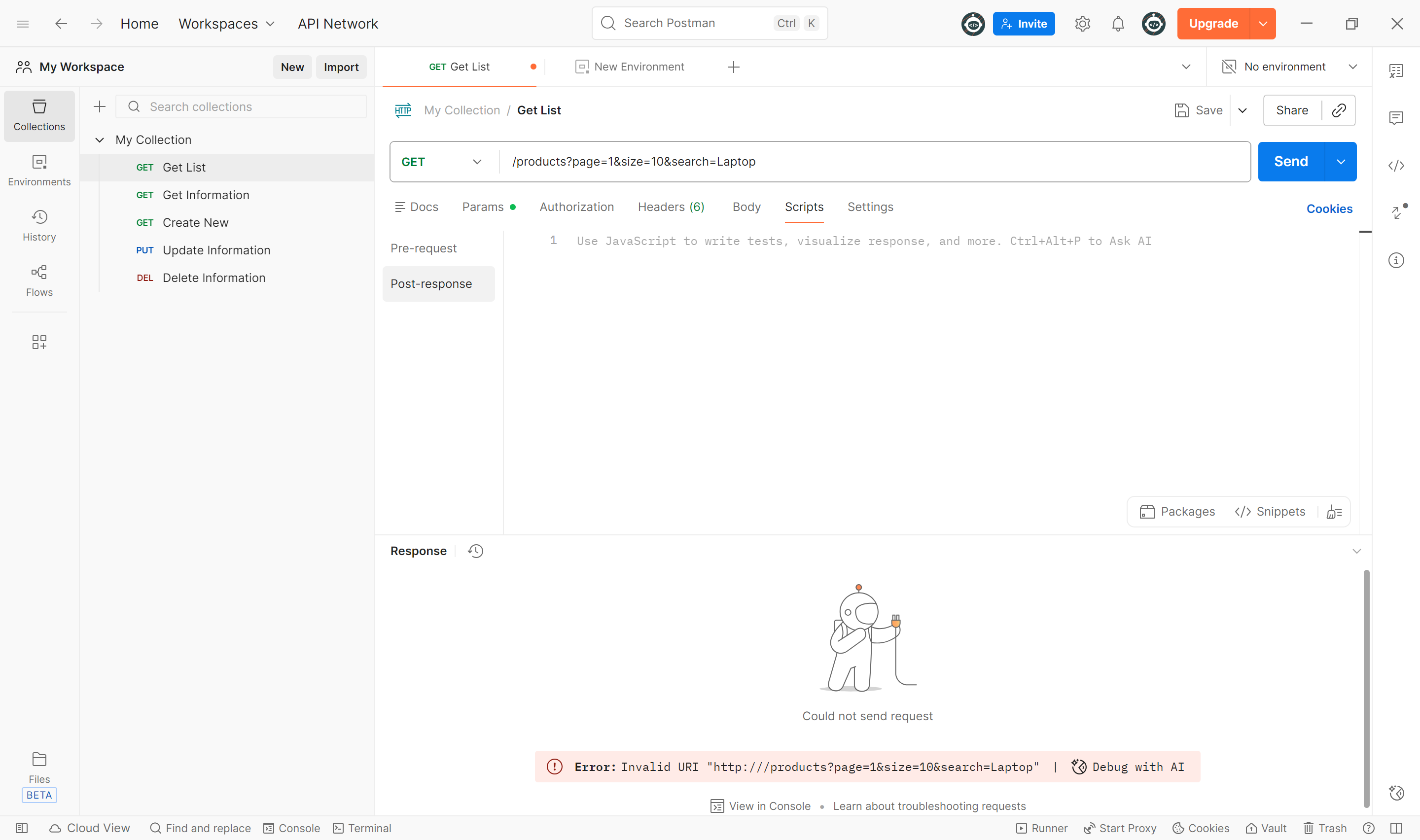
This is the exact moment I learned:
“Oh. APIs need a base URL.”
Cool. Reasonable.
But where exactly do I set that?
I scanned the entire screen like I was playing Where’s Waldo: API Edition.
Nothing.
Eventually, I realized I had to manually type {{baseUrl}} in the URL field.
But even that wasn’t obvious —
the input box only appears when you hover your mouse over it.
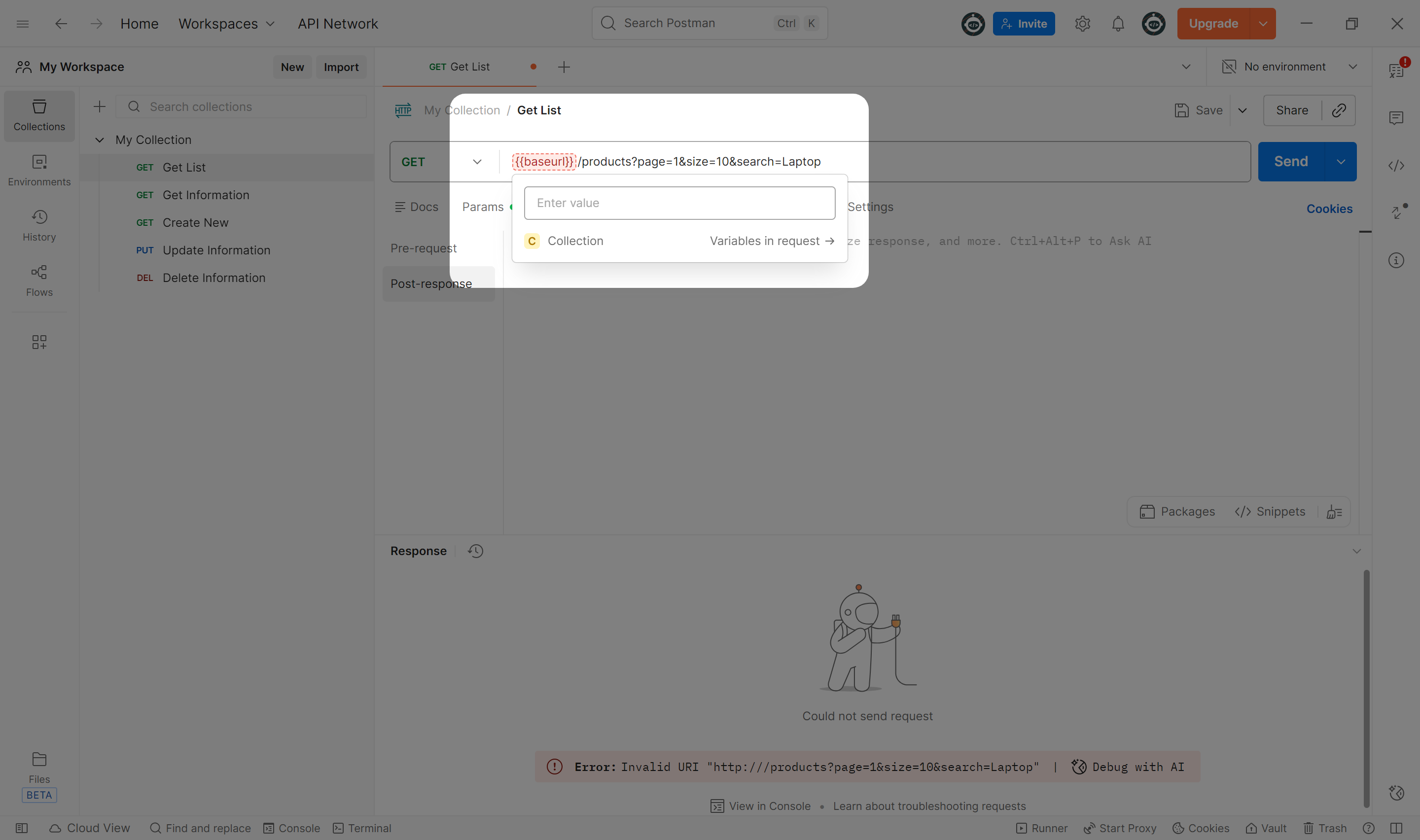
My internal dialogue:
“You could’ve told me this earlier, Postman.”
Then I finally added the environment variable:
https://dummyjson.com
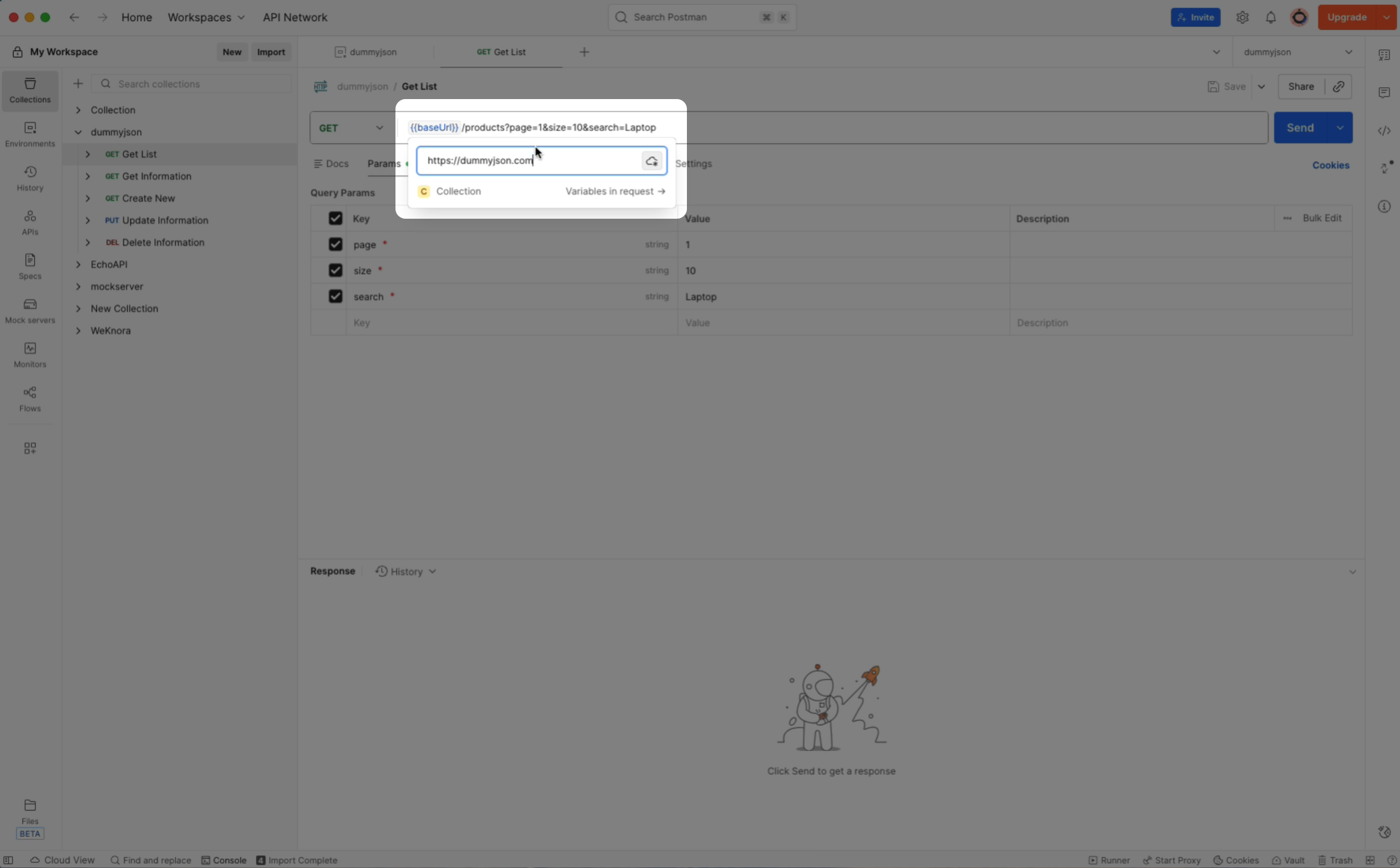
4. Sending the Request → Extracting Variables (Confidence: 40%)
This is where things stopped being fun.
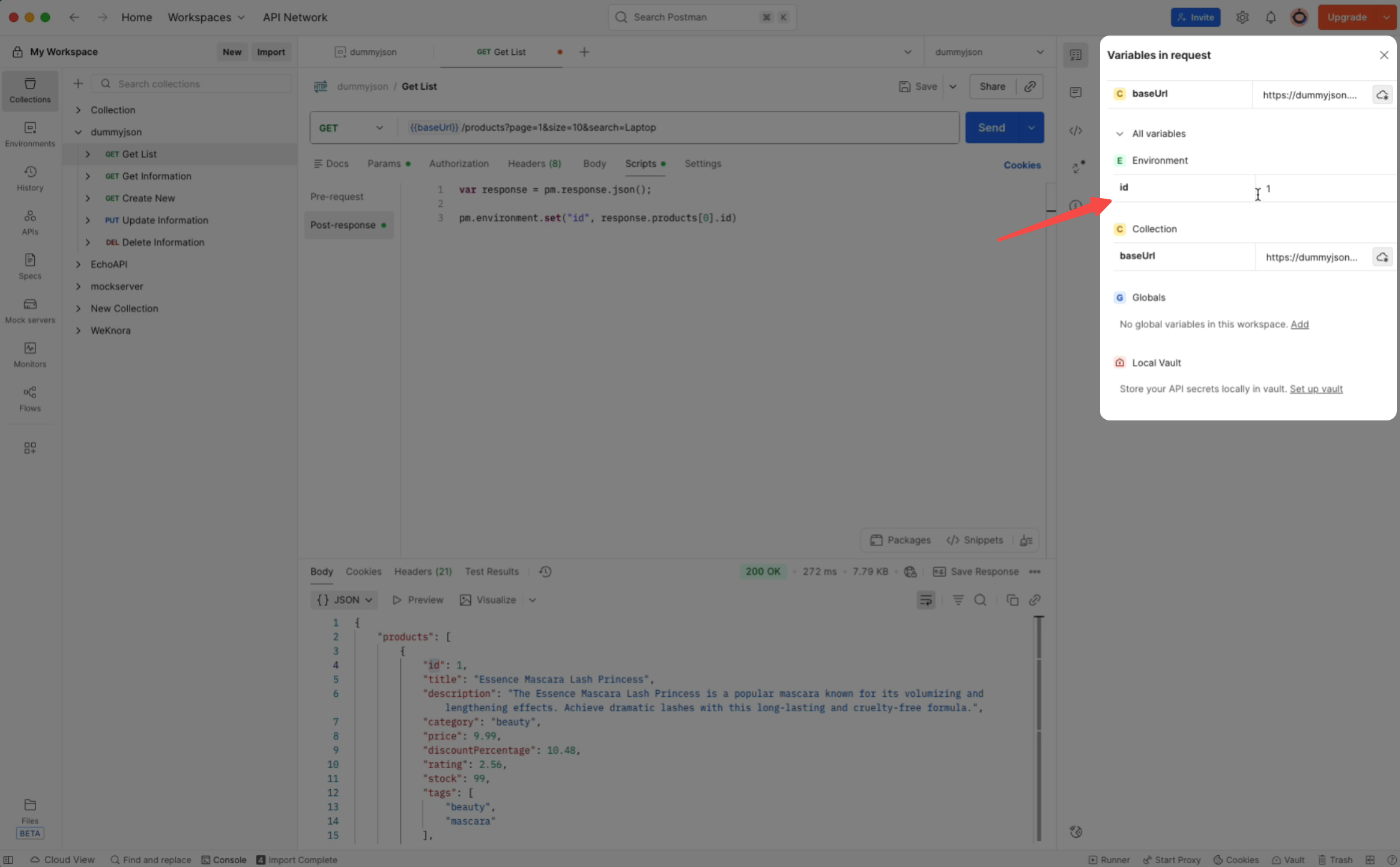
To extract a value, I had to:
- Click Scripts
- Write a Post-response Script manually
var response = pm.response.json();
pm.environment.set("id", response.products[0].id);
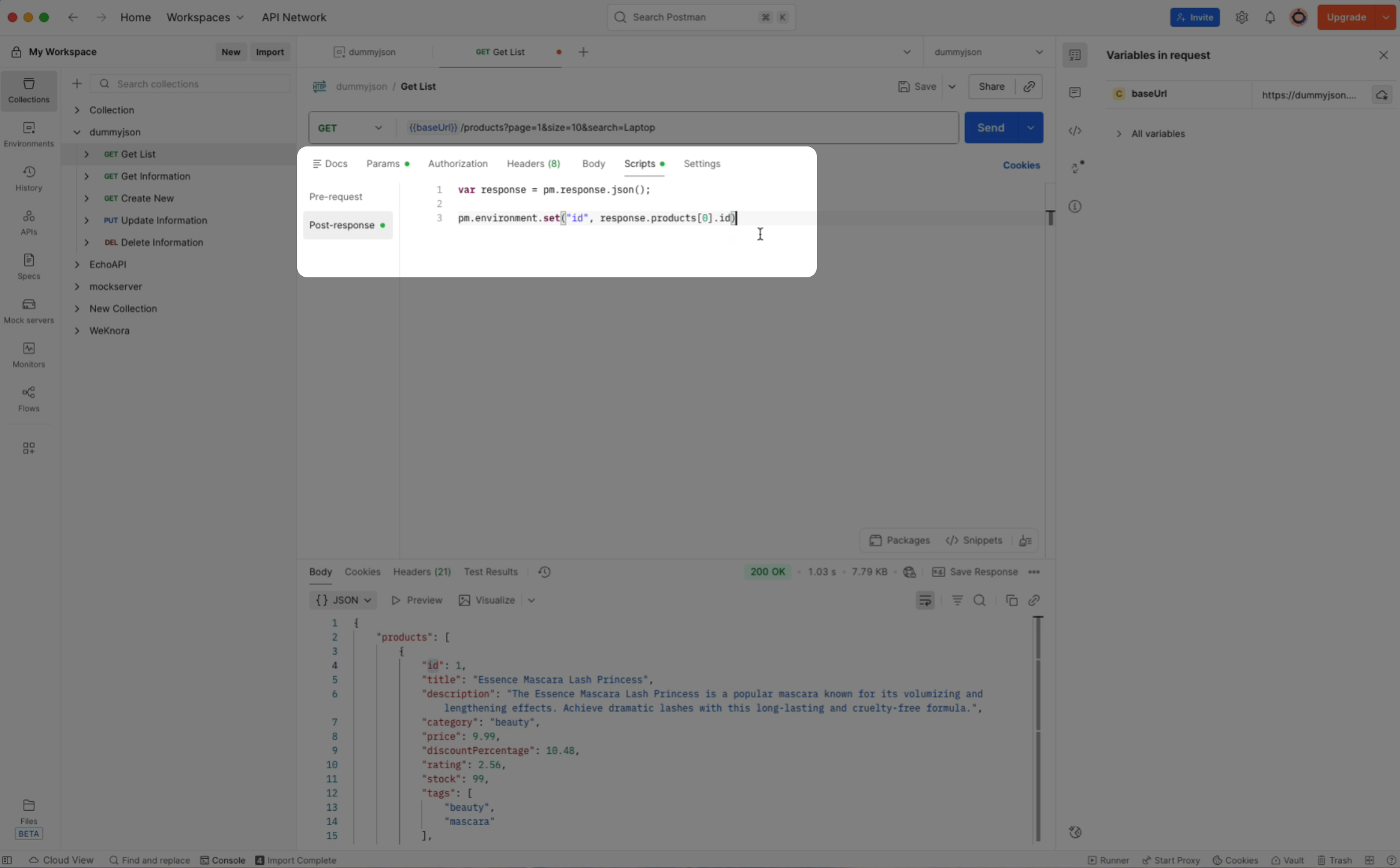
Important confession:
I do not understand this code.
AI wrote it for me.
I copy-pasted it.
I prayed.
And here’s the real problem:
- If the next API fails…
- Is the API broken?
- Or did I mess up this script?
At this point, I wasn’t really “testing APIs” anymore.
I was gambling with JavaScript I couldn’t read.
After clicking Send, I checked that the variable was saved.
Glad it was there.
5. APIs #2–#5 (Confidence: 30%)
Opening the second API immediately felt… wrong.
I had already set the base URL in the Collection.
But inside this API?
Nothing.
Once again, I had to manually add {{baseUrl}}.
The remaining four APIs followed the same exhausting ritual:
- Open API
- Reconfirm base URL
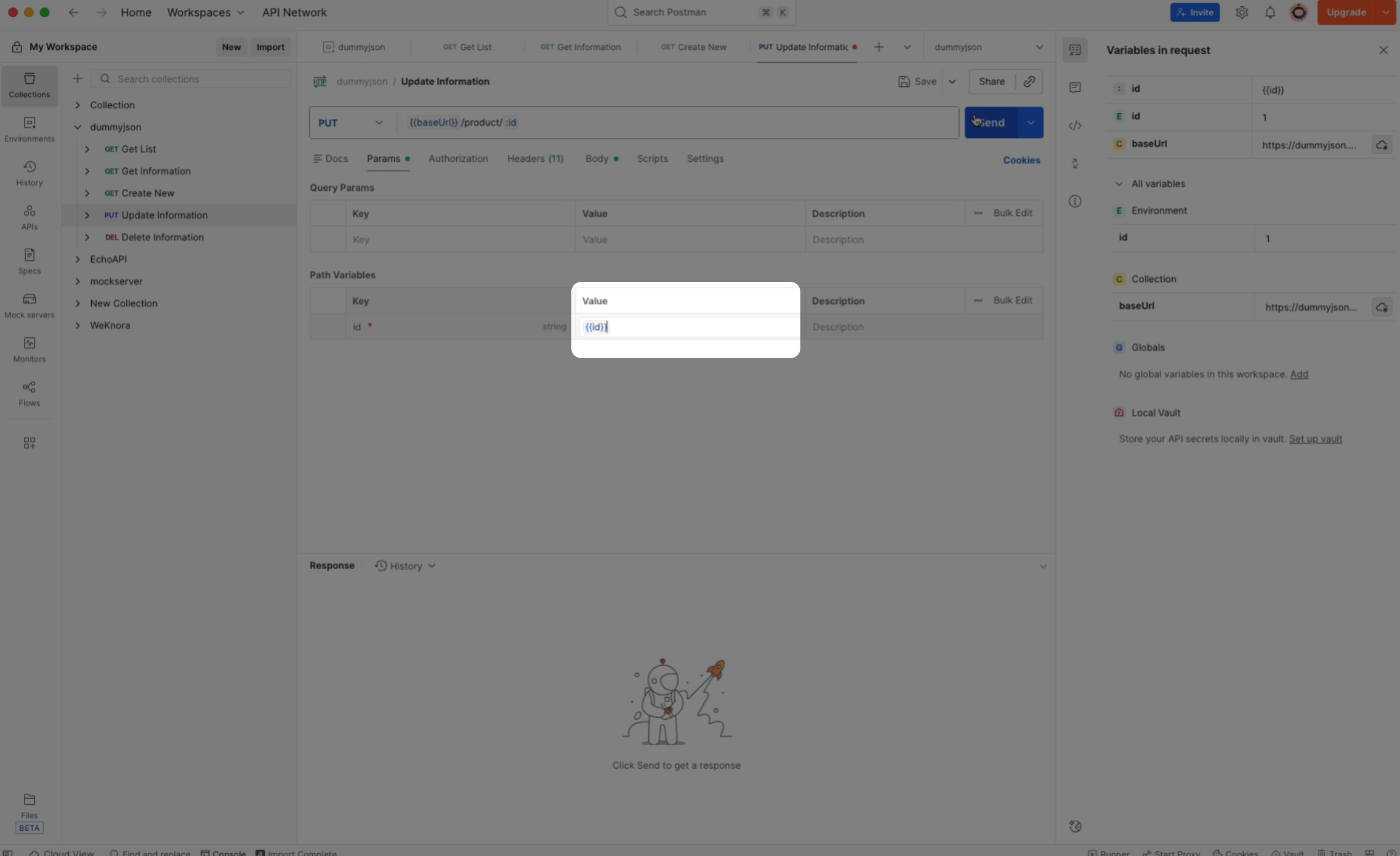
- Find path variables
- Replace
idwith{{id}}
By now, I was operating in pure muscle memory.
6. Running Automated Tests (Confidence: 20%)
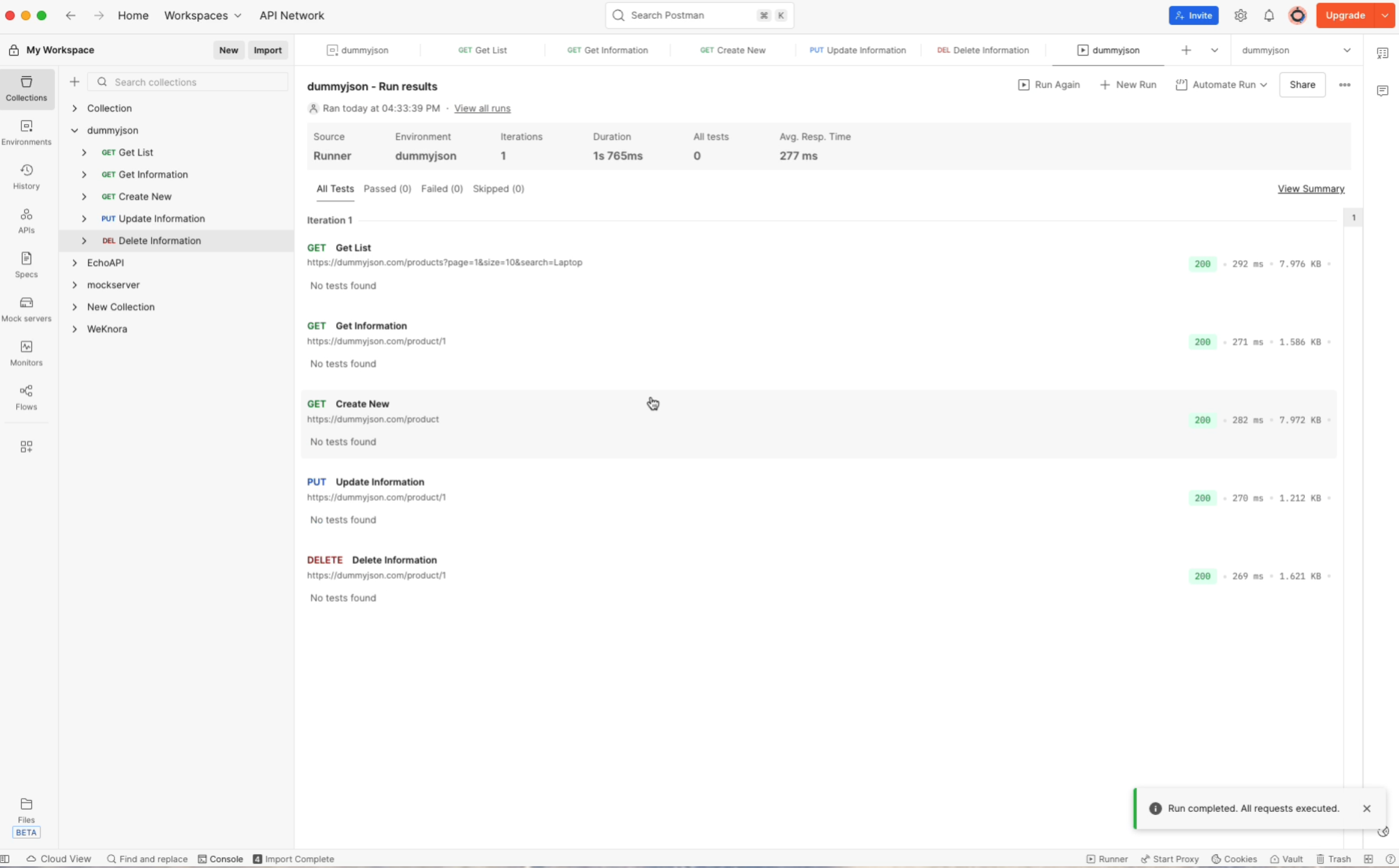
After all 5 APIs finally returned 200 OK,
I was ready for my first automated test run.
Small problem:
I had no idea where to start.
Naturally, I looked inside the request/response area.
That’s where everything else lives, right?
Wrong.
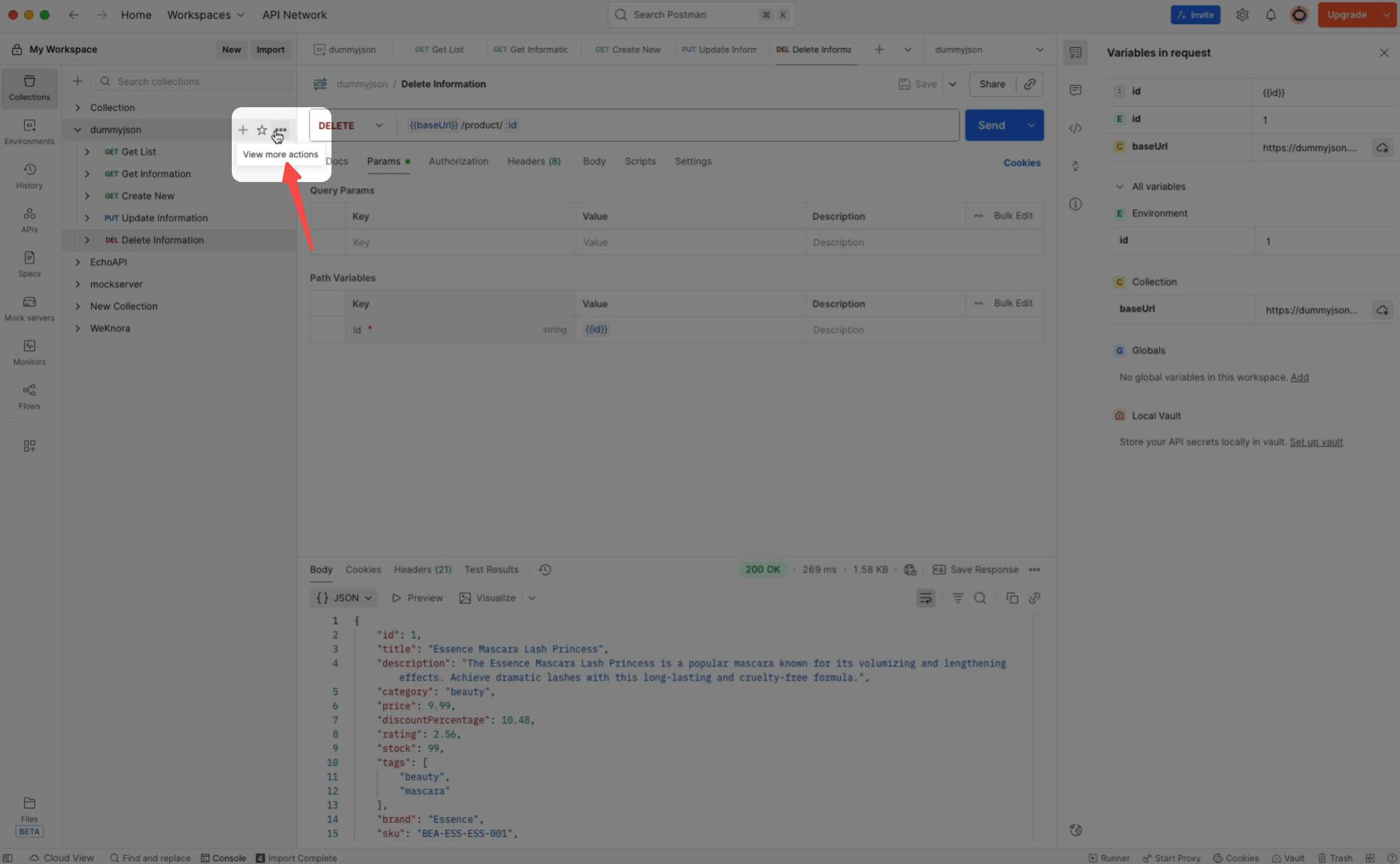
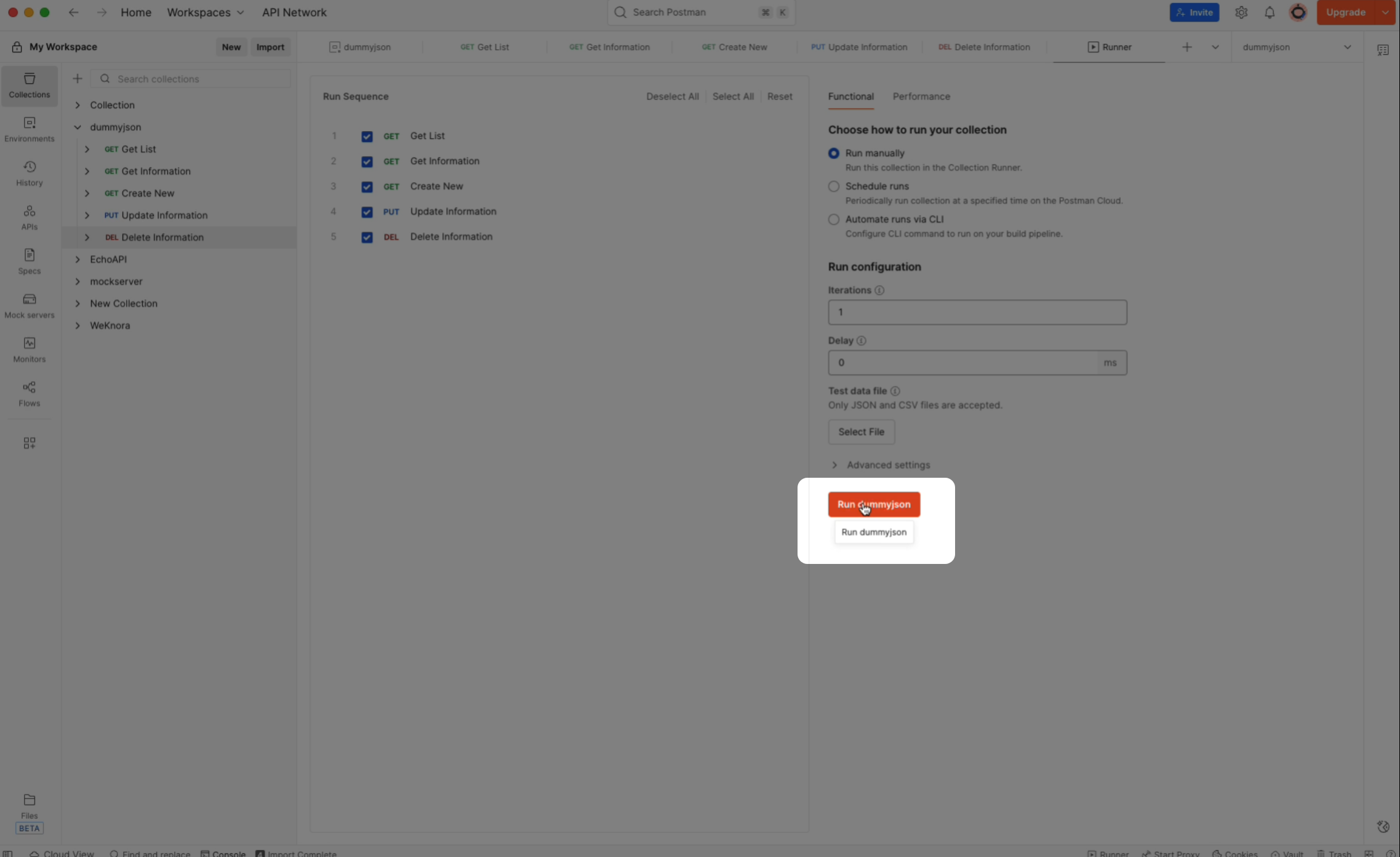
The real entry point is hidden behind:
1. View more actions → Run
Which you will not notice unless you already know it exists.
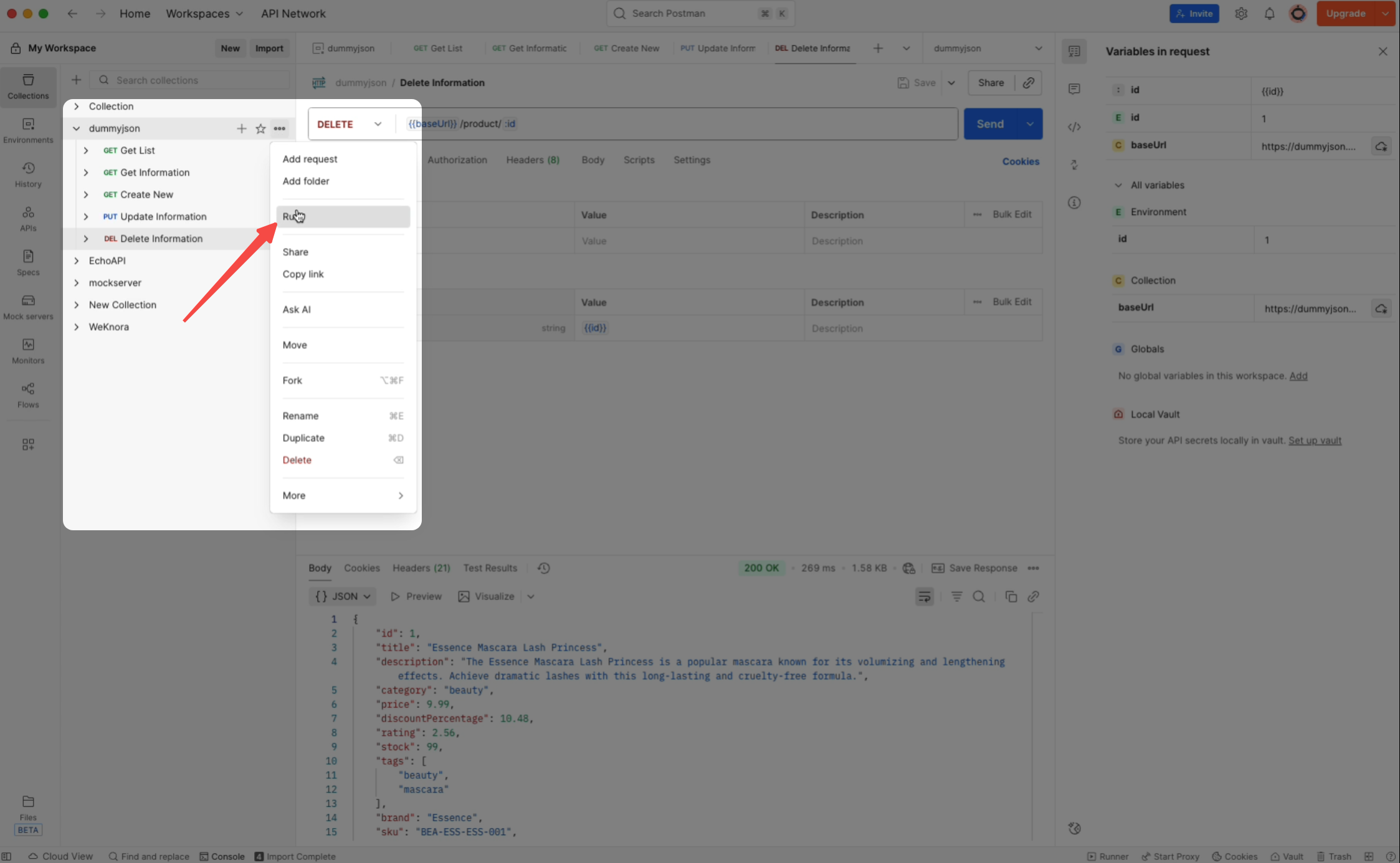
Then:
2. Select environment → Run
3. Check success/failure results
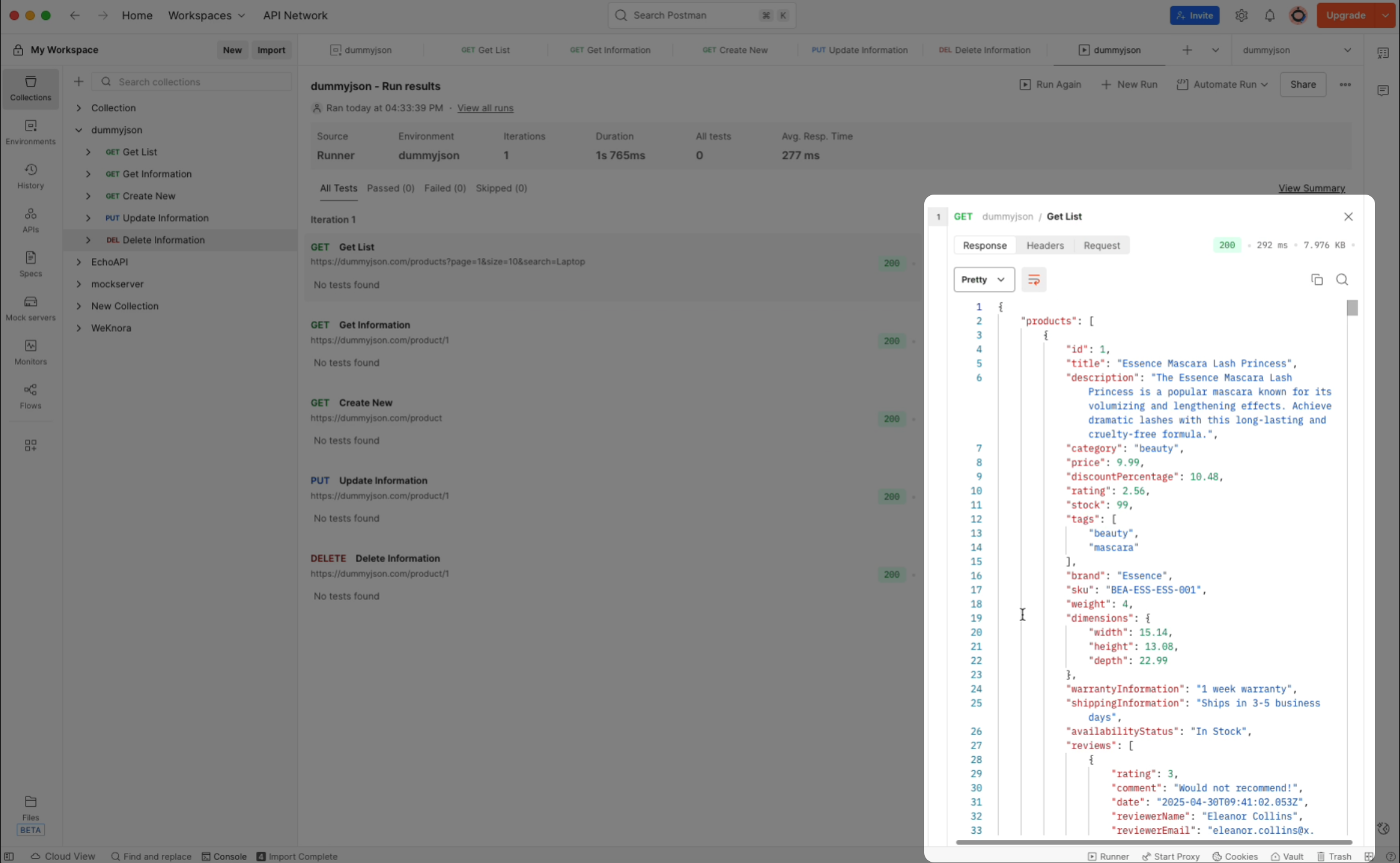
It worked.
But the entire time, my brain was screaming:
“Please don’t let me have typed one thing wrong.”
Part 2: Running the Same Flow in EchoAPI
I’ll be honest — I started skeptical.
“All API tools are basically the same, right?”
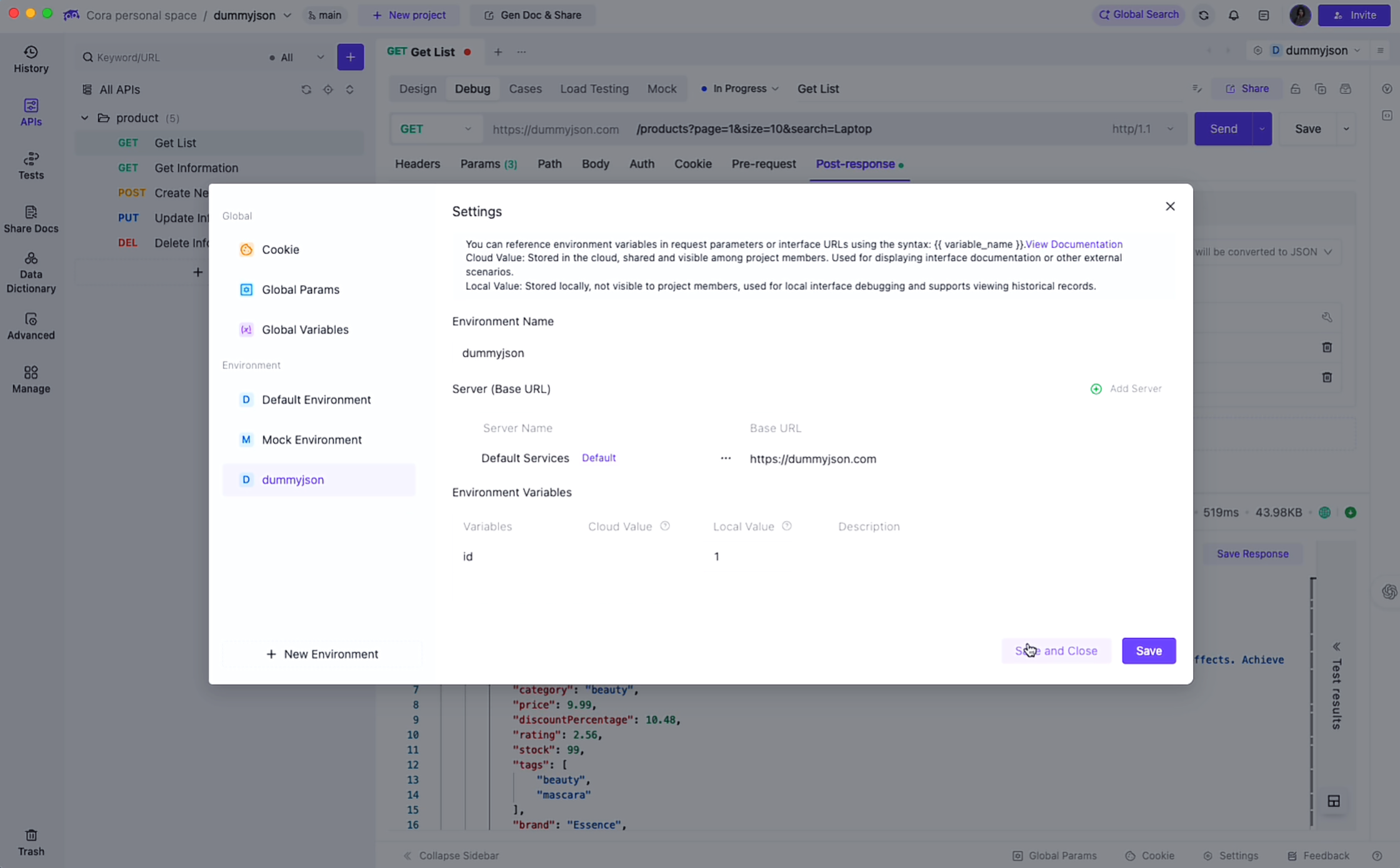
1. Creating an Environment (Easy)
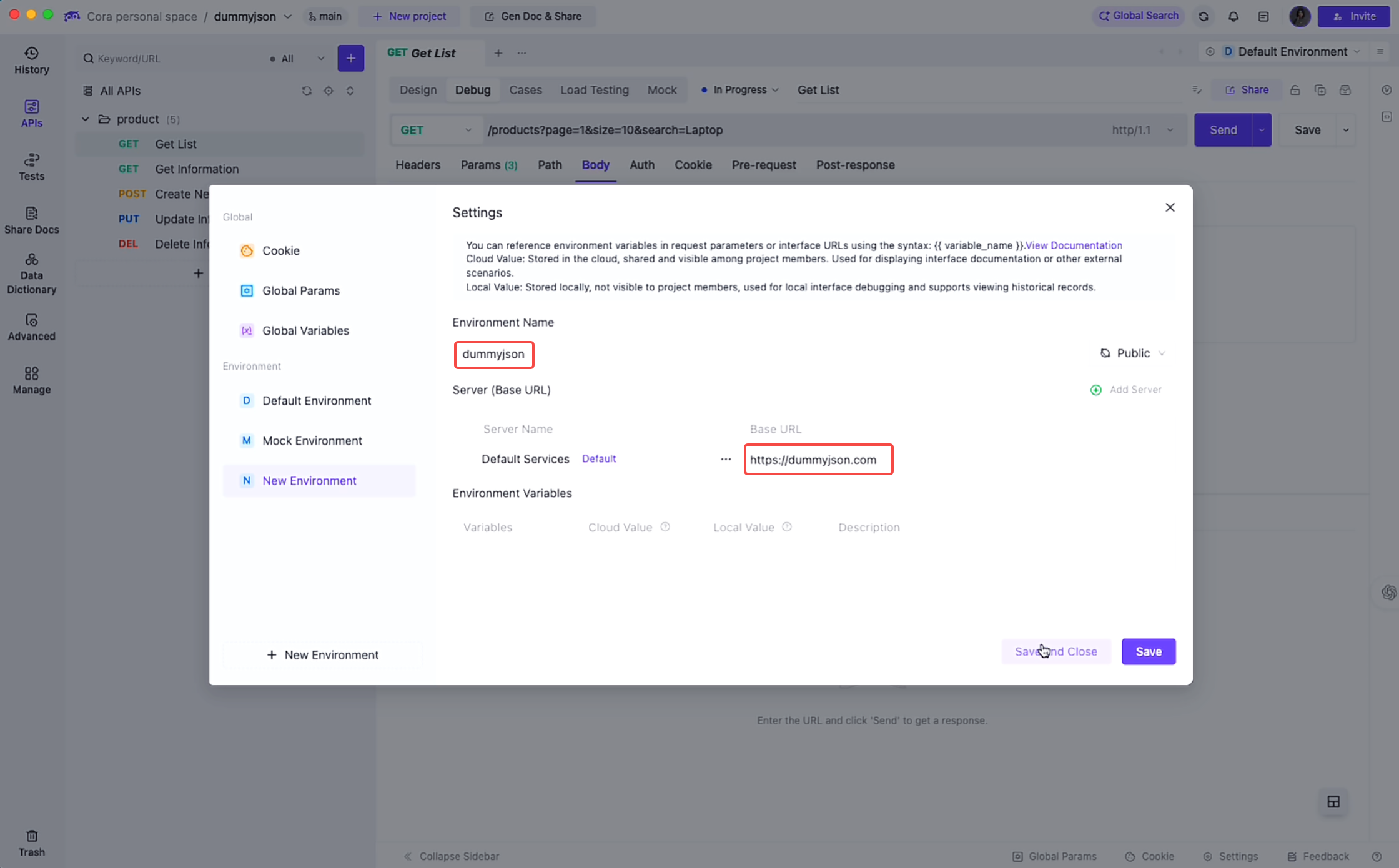
1. Click Manage Current Environment

2. Fill in:
Base URL:
https://dummyjson.com
Environment Name:
dummyjson
3. Open the first API and select the environment
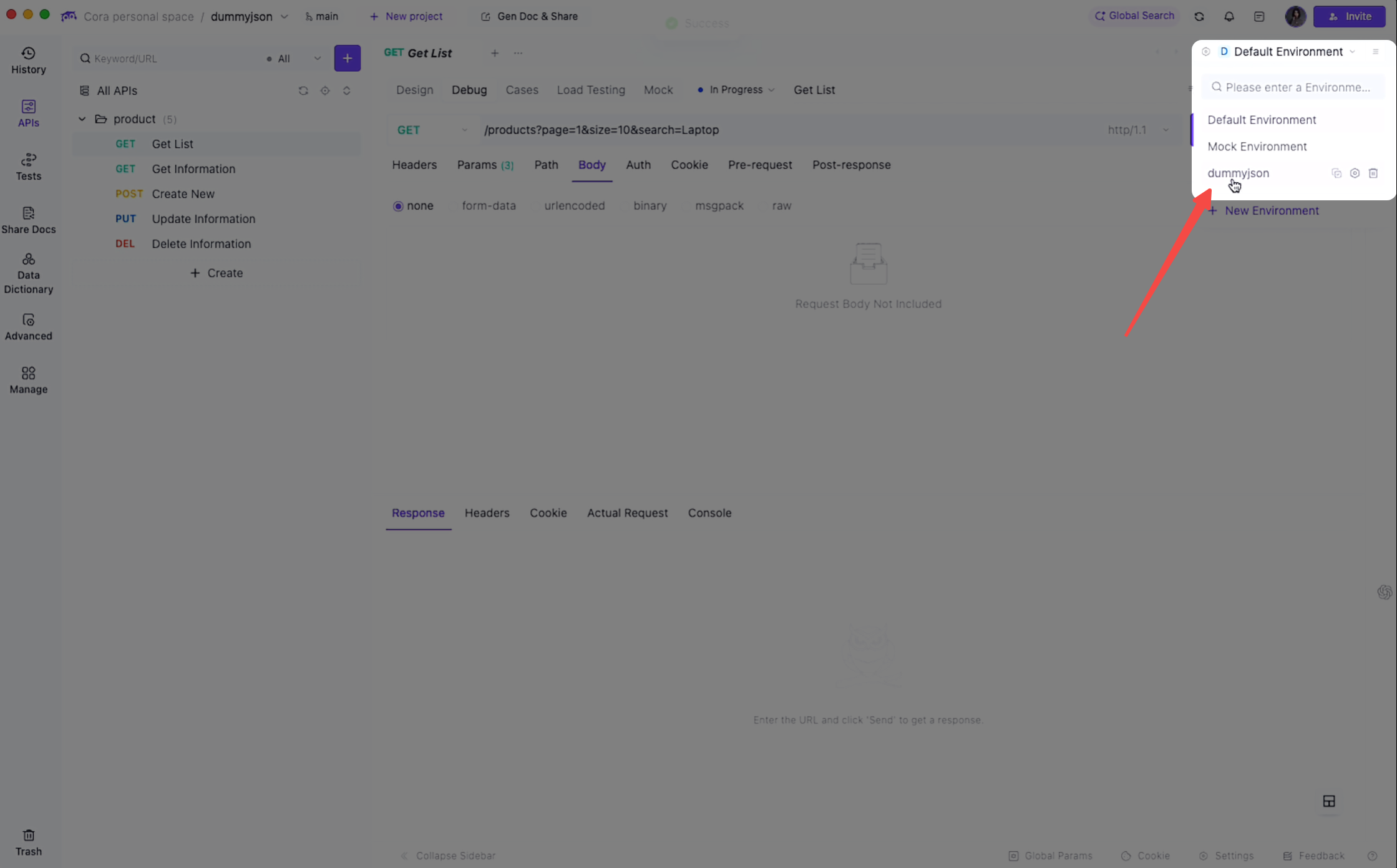
When I returned to the API page, I noticed something immediately:
The base URL was already there. Automatically. With an explanation.
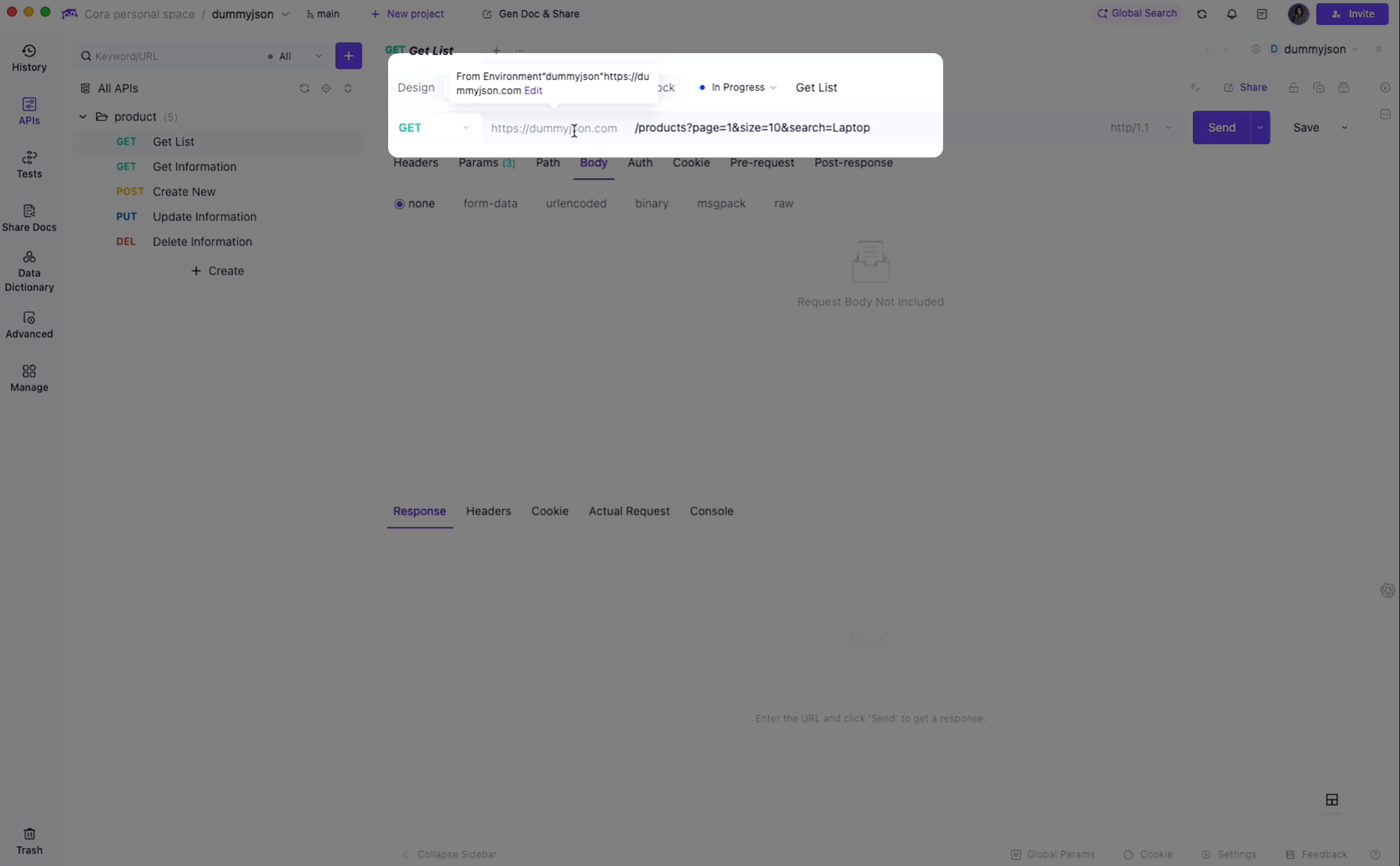
Oh… so this is something the tool can remember for me.
2. Send Request → Extract Variable (No Manual Scripts, No Fear)
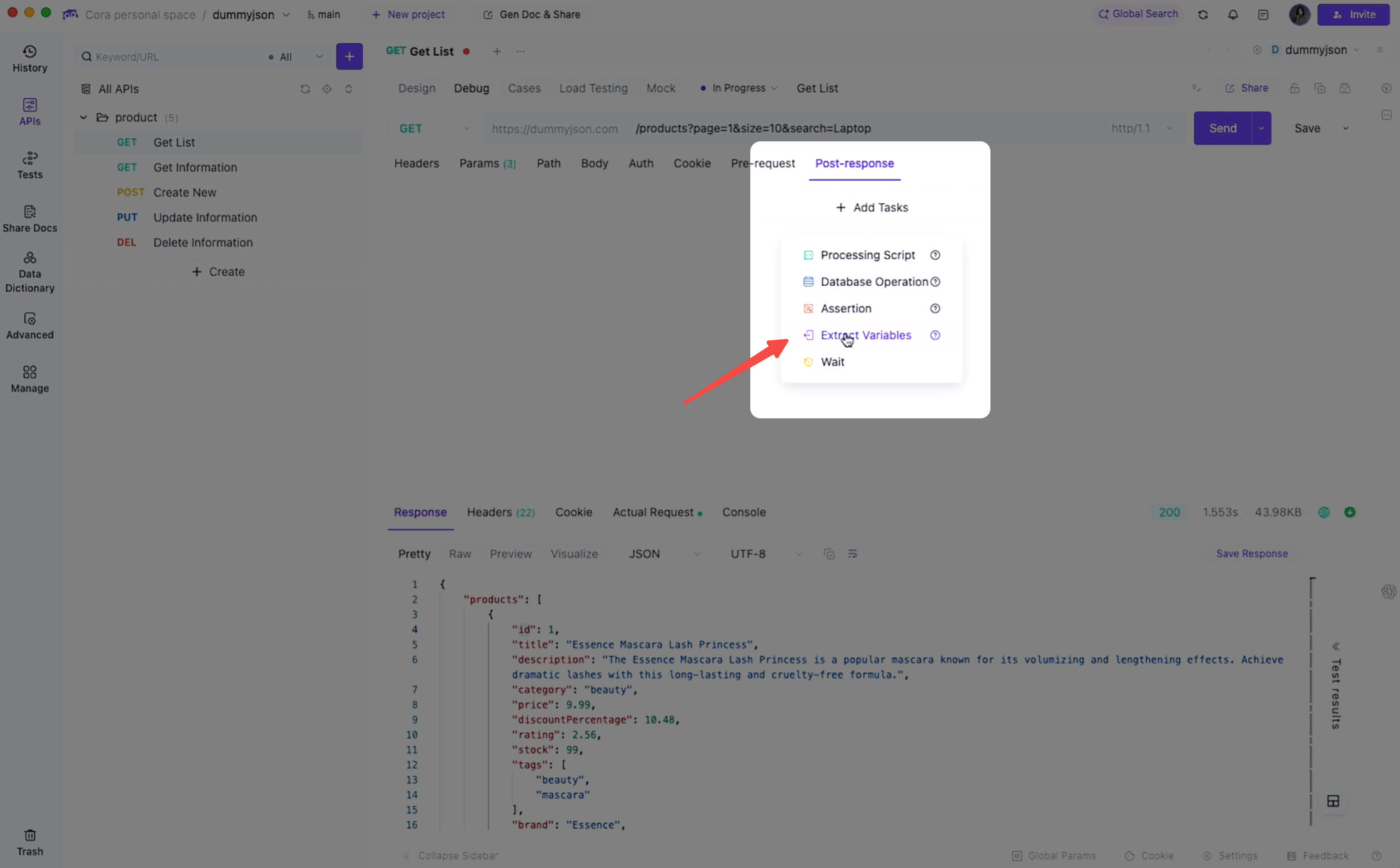
- Click Send
- Post-response → Add Tasks → Extract variable
- Fill in:
- Variable Name:
id - Type: Environment Variables
- JSONPath:
$.products[0].id
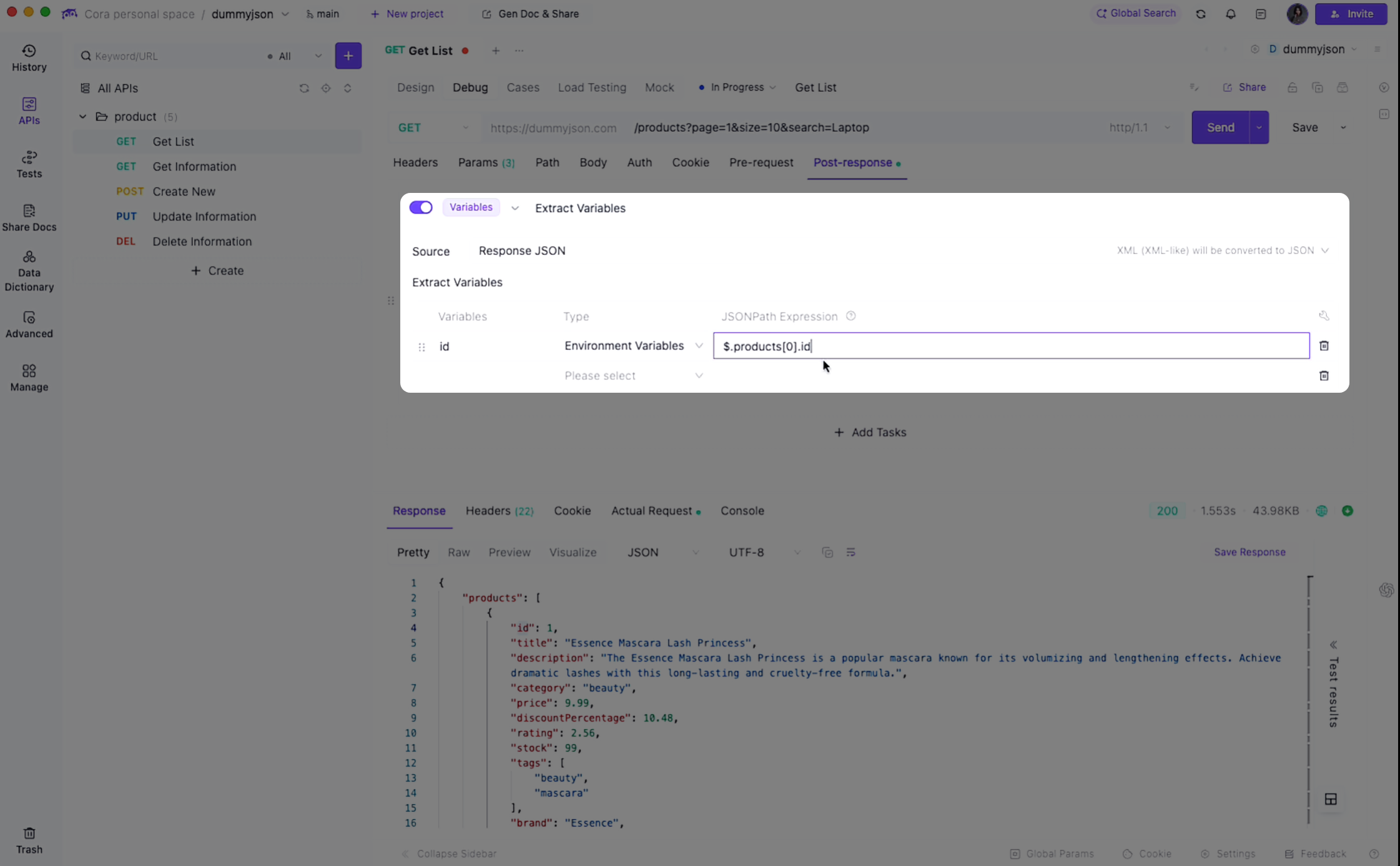
- Check environment — variable is already saved
No JavaScript.
No pm.response.
No anxiety.
I was only answering one simple question:
“Which value do I want?”
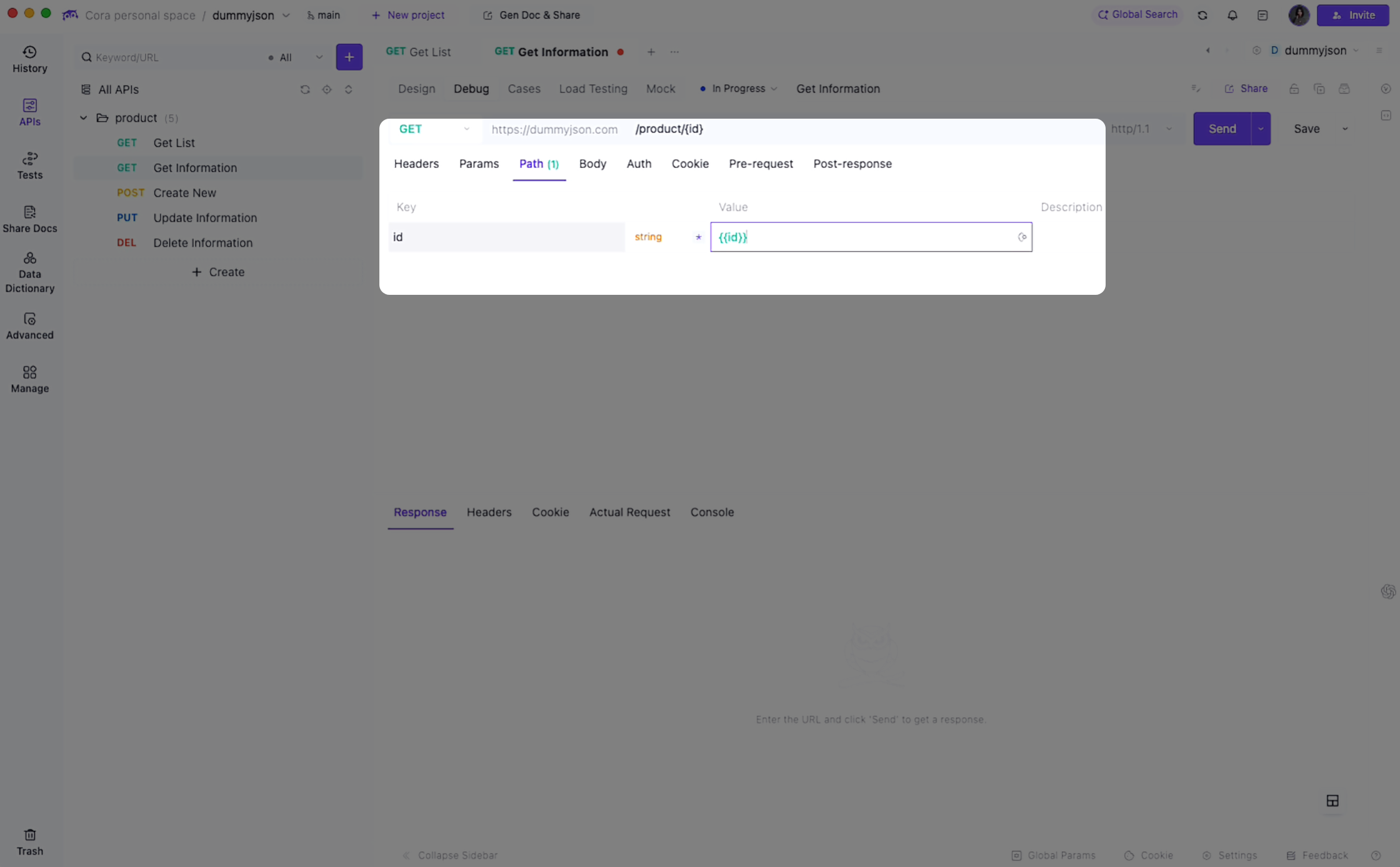
3. APIs #2–#5
The remaining APIs were… uneventful:
- Environment auto-selected
{{baseUrl}}automatically applied- Reusing
{{id}}was obvious and straightforward
Nothing broke.
Nothing surprised me.
Which, honestly, is the dream.
4. Automated Testing (A Dedicated Place, Finally)
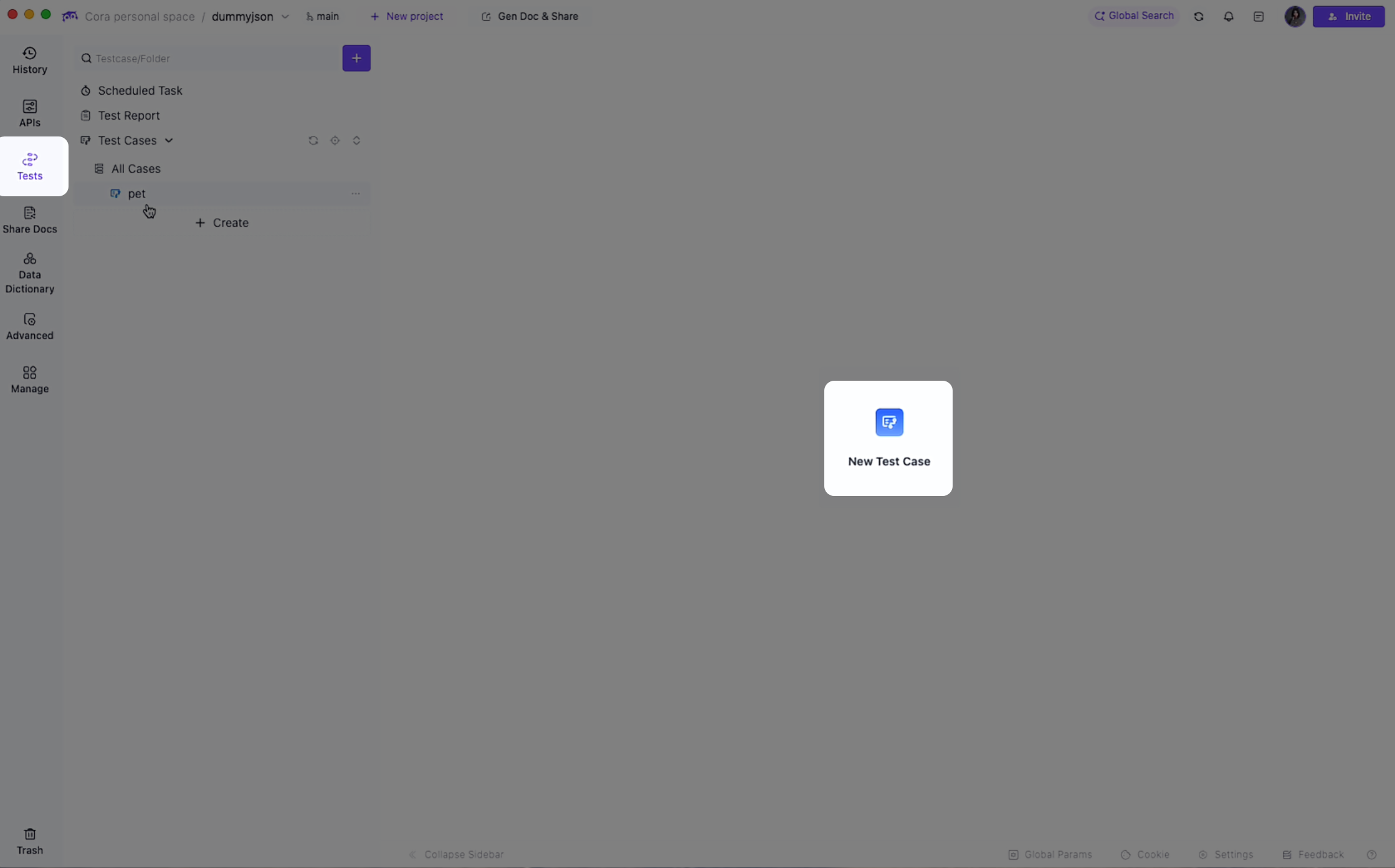
1. Tests → New Test Case
2. Add Steps → HTTP Requests
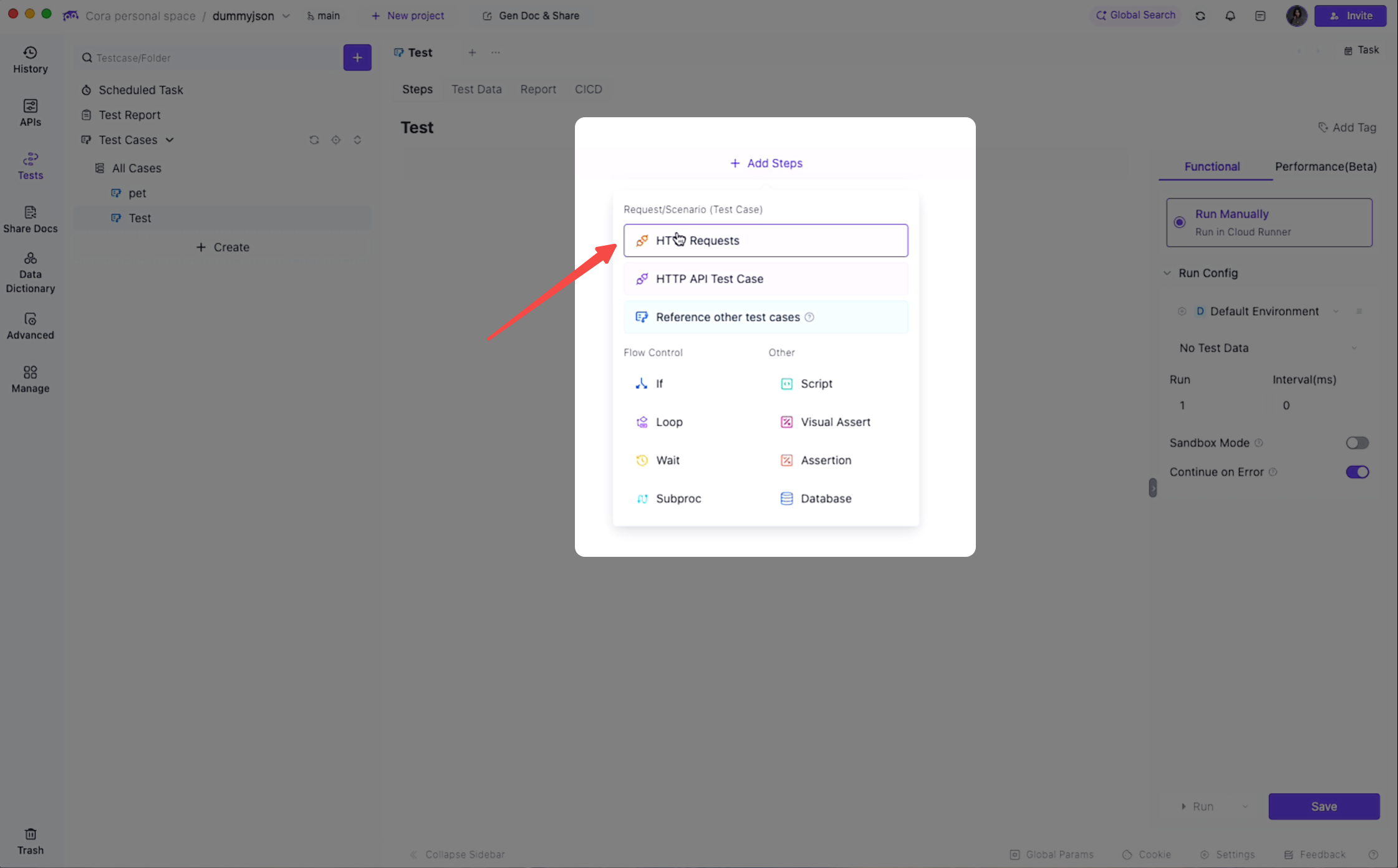
3. Select the 5 APIs
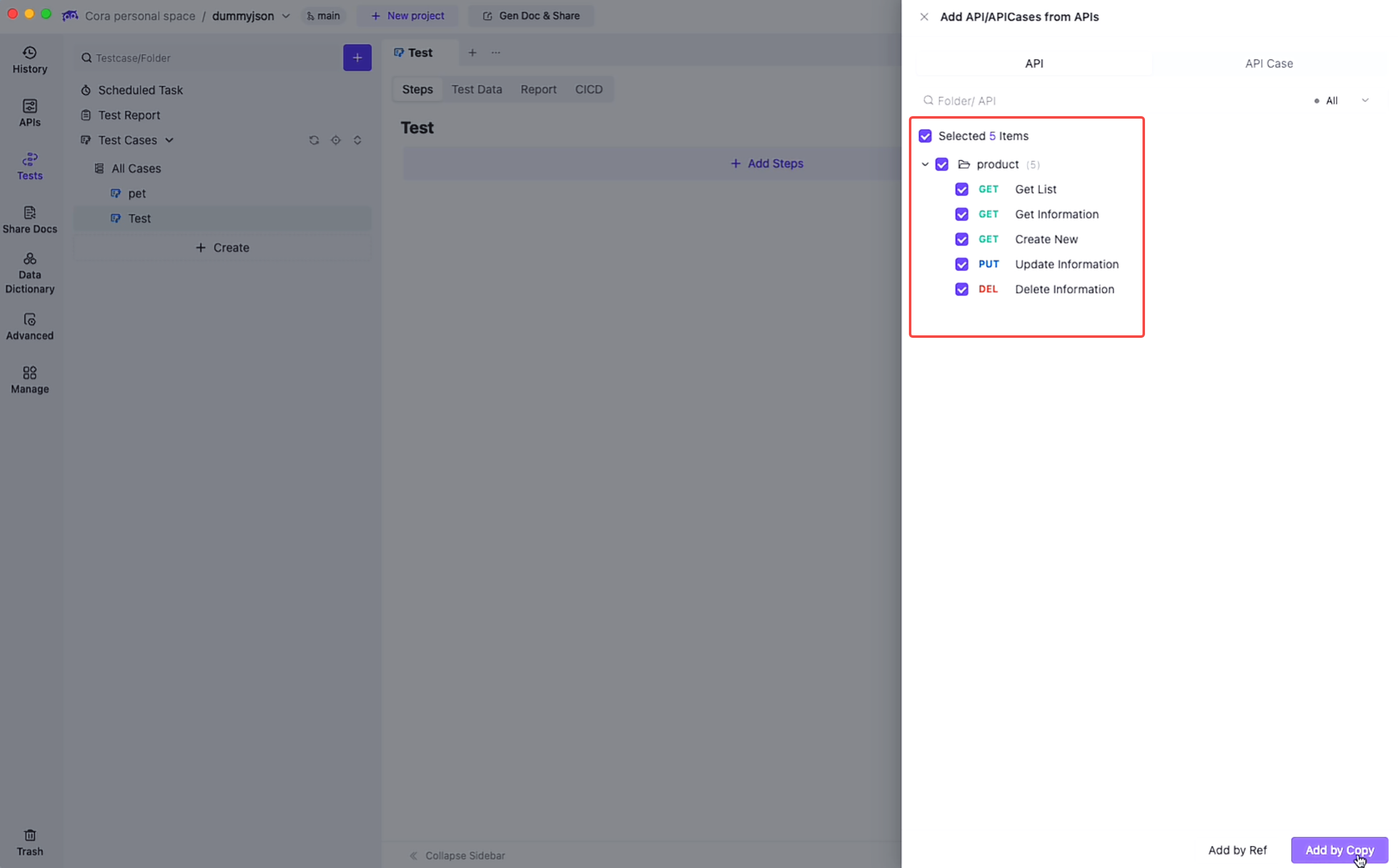
4. Choose the dummyjson environment
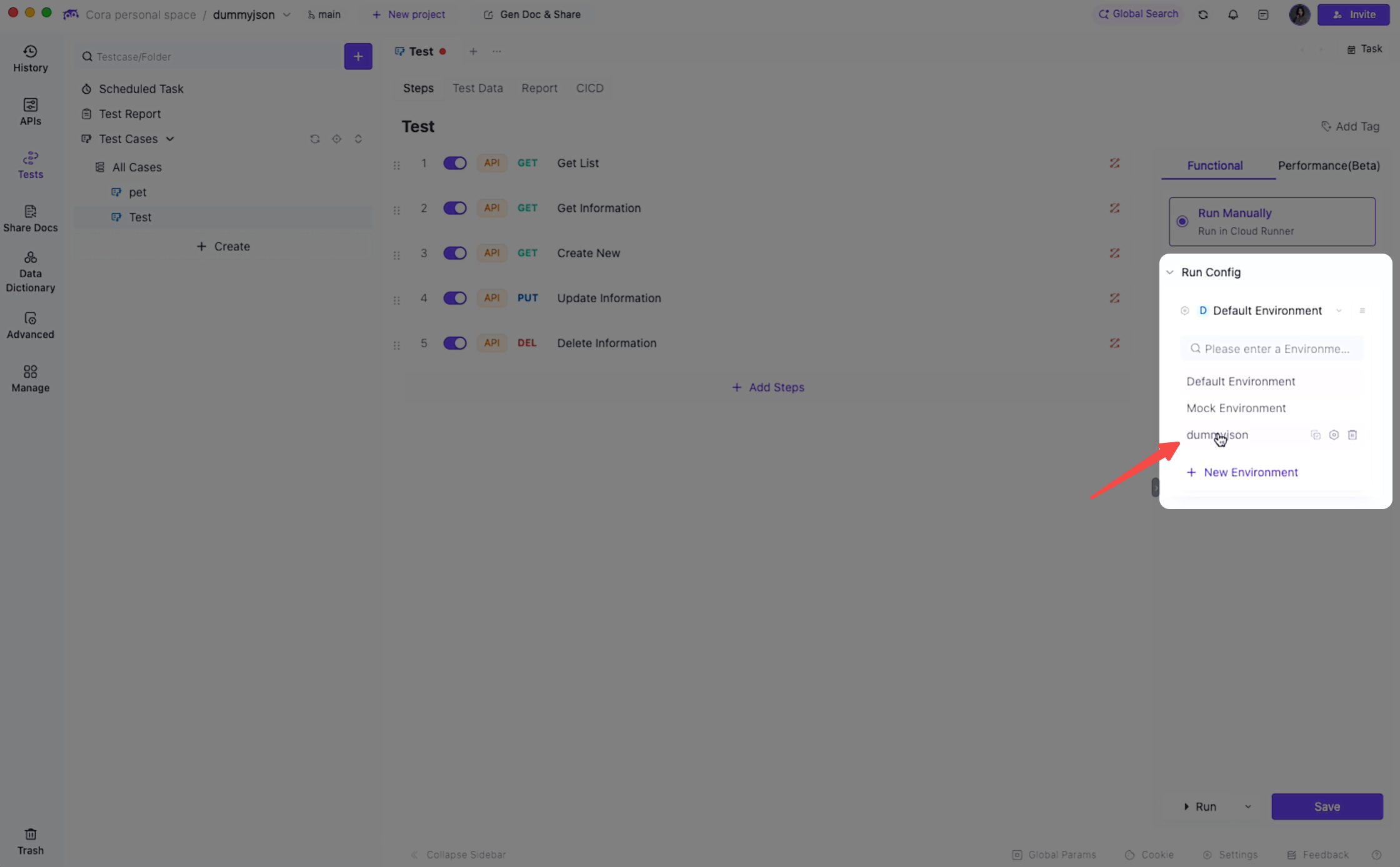
5. Save → Run
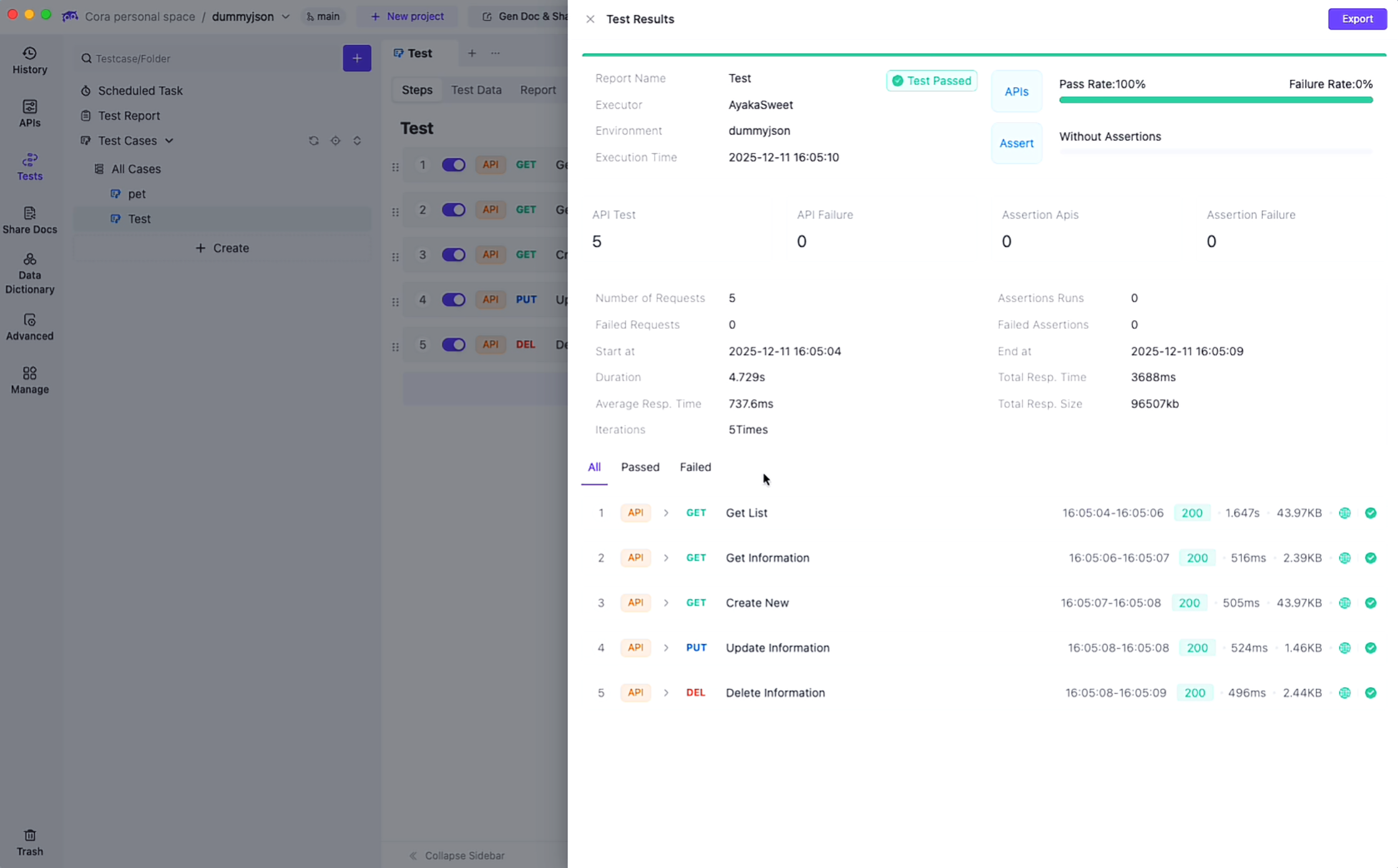
6. View detailed responses for every step
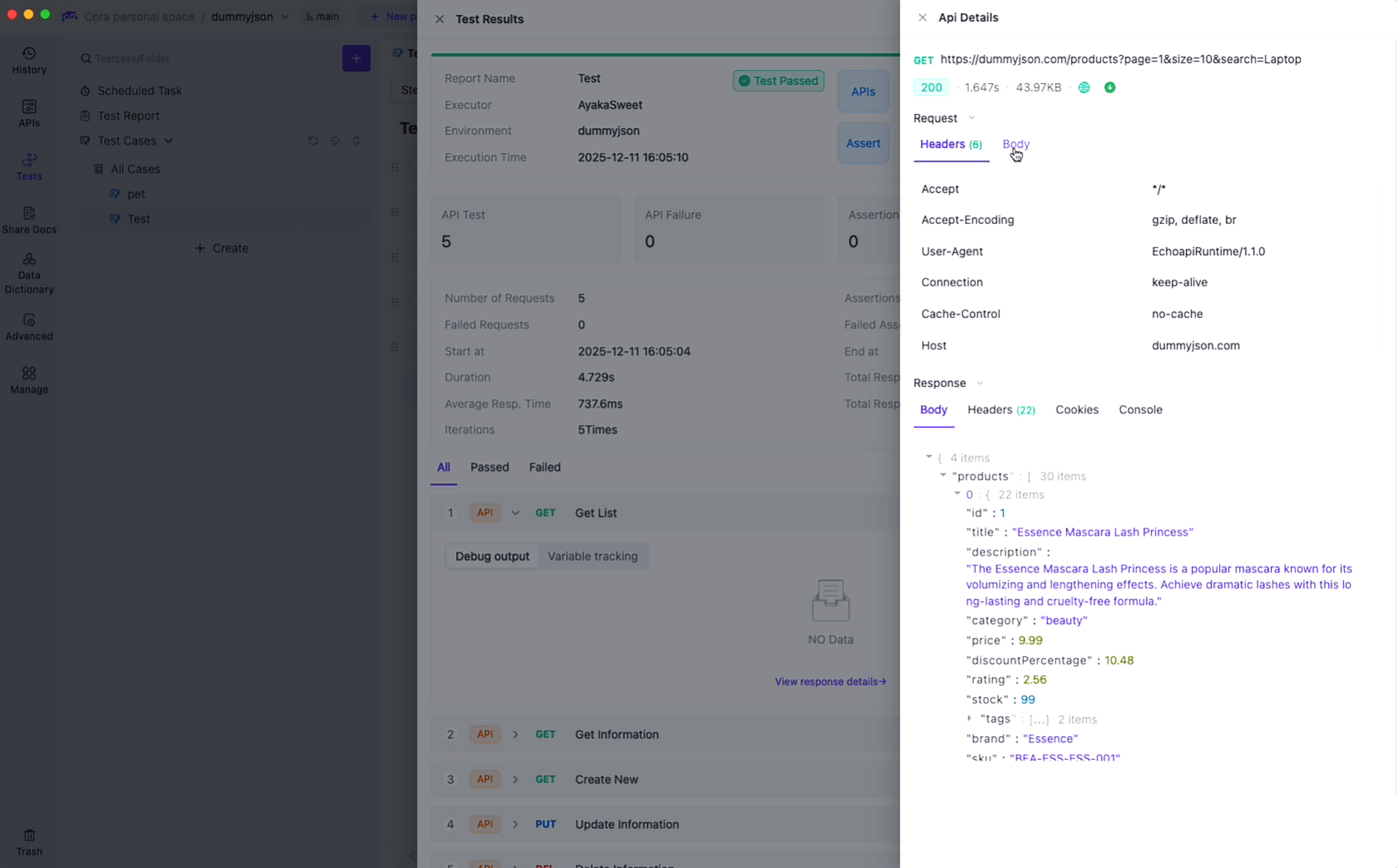
Why EchoAPI Actually Helps Beginners
At first, I wondered:
Why not just put tests inside each API?
After running the full flow, it finally clicked.
1. Calling APIs and Running Tests Are Mentally Different Tasks
In Postman, everything lives together:
- Requests
- Parameters
- Scripts
- Automation
For experienced users, that’s efficient.
For beginners, it feels like:
“I don’t even know what mode I’m in right now.”
EchoAPI makes the boundary explicit:
Now you’re testing workflows — not tweaking endpoints.
That mental separation matters.
2. No More Hunting for Hidden Entrypoints
In Postman, beginners often think:
“I know this feature exists… I just don’t know where it lives.”
EchoAPI’s structure is simple:
- API pages = single endpoint logic
- Tests module = how endpoints work together
No mixed signals.
No guessing.
Final Thoughts
EchoAPI assumes:
Testing is a full workflow.
I’ll give you the entrance.
You focus on intent — I’ll handle the scripting.
Postman assumes:
You already know where testing lives,
how scripts work,
and how to debug them.
For beginners, it’s not about how powerful a tool is.
It’s about whether the tool shows its thinking out loud.
